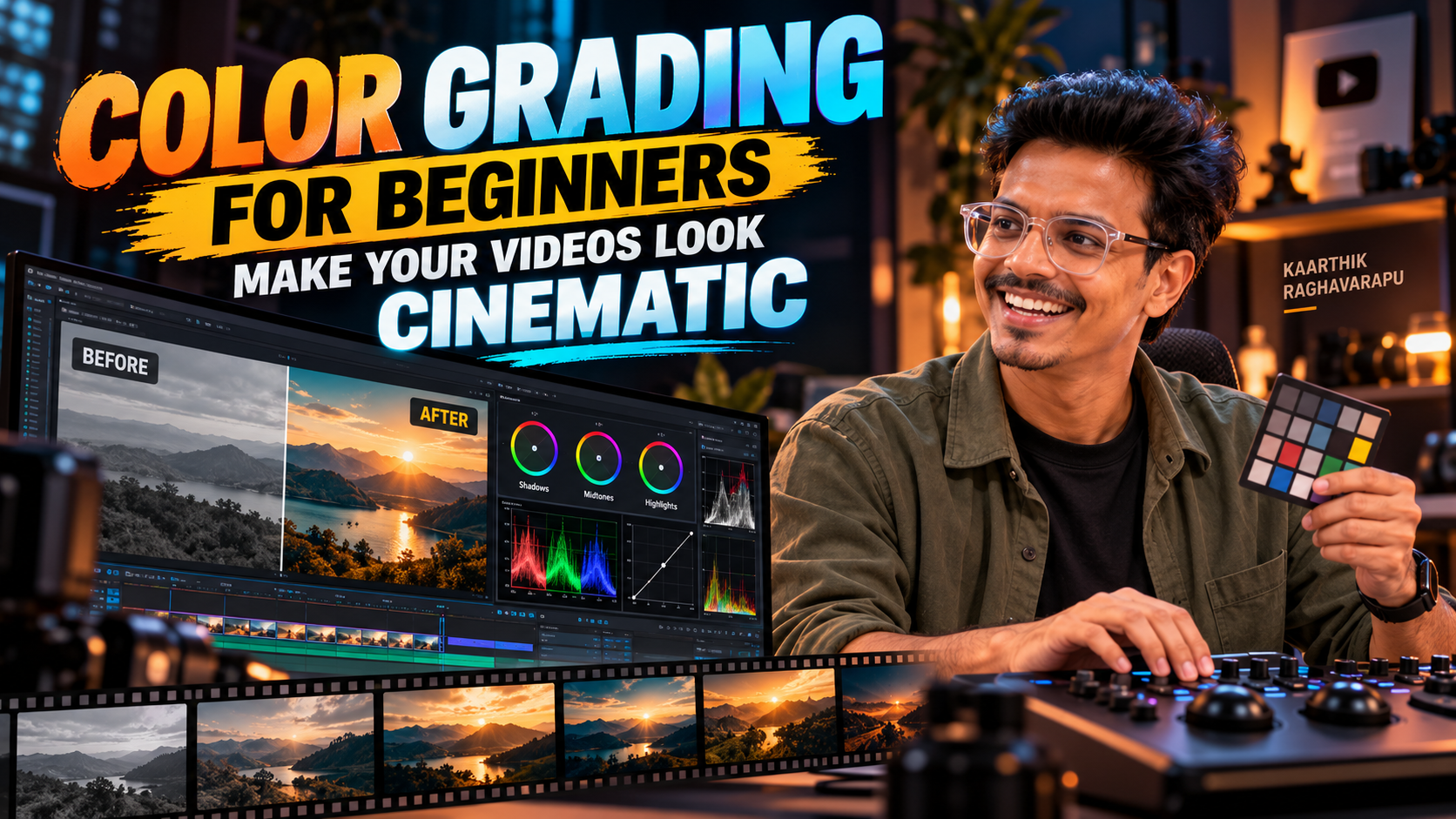
Introduction
Have you ever watched a cinematic video and wondered why it looks so different from ordinary footage? The camera, lighting, lens, and composition all contribute to the result. Color correction and color grading also play an important role in creating a polished visual style.
Color grading can make footage feel warm and nostalgic, cool and dramatic, bright and energetic, or dark and mysterious. With a basic understanding of color and consistent practice, you can improve the appearance of your videos using Adobe Premiere Pro.
What Is Color Correction?
Color correction is the process of adjusting footage to achieve a balanced and consistent starting point. Footage may look too dark, too bright, overly warm, or unusually green depending on camera settings and lighting.
- Exposure and brightness
- White balance
- Contrast
- Highlight and shadow detail
- Basic saturation
- Matching shots recorded under different lighting conditions
What Is Color Grading?
Color grading is the creative process of shaping the visual appearance of your footage. After correcting basic problems, you can adjust colors, contrast, and tonal relationships to establish a particular mood. Warm colors may create a cozy atmosphere, cooler tones can support a restrained look, and stronger contrast may produce a dramatic image when appropriate.
Step 1: Learn the Lumetri Color Panel
Adobe Premiere Pro includes the Lumetri Color panel, which provides tools for correcting and grading footage. Become familiar with Basic Correction, Creative, Curves, Color Wheels and Match, HSL Secondary, and Vignette. Start with basic correction and gradually explore advanced features.
Step 2: Correct White Balance
White balance affects how neutral colors appear. If footage is too warm, whites may look yellow or orange; if too cool, they may look excessively blue. Adjust temperature and tint carefully until neutral objects look reasonably neutral and skin tones appear natural.
Step 3: Adjust Exposure and Contrast
Exposure determines how bright or dark your image appears, while contrast controls the separation between darker and brighter areas.
- Adjust exposure so the subject is visible.
- Recover highlight detail where possible.
- Lift shadows when important details are too dark.
- Set contrast to suit the scene.
- Check that important details remain visible.
Step 4: Understand Color Saturation
Saturation controls the intensity of colors. Increasing saturation can make a video more vibrant, while reducing it can create a softer appearance. Excessive saturation can make skin tones unnatural and colors distracting, so make gradual adjustments.
Step 5: Match Different Shots
Shots recorded under different lighting conditions may have different exposure levels, color temperatures, and contrast. Correct these differences before applying a creative grade. Compare neighboring shots, paying attention to skin tones, brightness, and neutral objects.
Step 6: Use Cinematic Color Combinations Carefully
Some cinematic grades use different color relationships in shadows, midtones, and highlights. A subtle cool tone in shadows combined with warmer skin tones can create separation, but this does not work equally well for every scene. Let the story and original lighting guide your choices.
Step 7: Use Scopes Instead of Relying Only on Your Eyes
Your monitor, room lighting, and display settings can influence how you perceive color and brightness. Premiere Pro provides video scopes that help you evaluate the image more objectively.
- Waveform: helps evaluate brightness levels.
- RGB Parade: helps compare red, green, and blue channel levels.
- Vectorscope: helps assess color distribution and saturation.
Start by learning how a waveform represents image brightness and how a vectorscope helps you understand color and saturation. Scopes are useful when matching shots and checking consistency.
Step 8: Avoid Common Color Grading Mistakes
- Overusing LUTs: a lookup table can provide a starting look, but may not suit every shot.
- Crushing shadows: excessively dark shadows can hide details.
- Oversaturating colors: strong colors can become distracting.
- Ignoring skin tones: unnatural skin colors can make footage feel artificial.
- Applying identical settings to every clip: different lighting conditions often require individual adjustments.
- Grading without checking the final export: review the rendered file.
A Beginner-Friendly Color Grading Workflow
- Correct the footage: balance white balance, exposure, and contrast.
- Match the shots: create consistency between clips recorded under different conditions.
- Develop the creative look: adjust color relationships and contrast to support the mood.
- Review and export: check skin tones, detail, consistency, and the final rendered video.
Practice Color Grading With Real Projects
Try grading a travel montage, talking-head video, product advertisement, and cinematic sequence. Compare original footage with the graded version. Ask whether your adjustments improve the image and support the intended mood.
Learn Professional Editing With Plan At B
At Plan At B, we encourage students to combine software knowledge with hands-on creative practice. Learning color correction, grading, editing, and storytelling through real projects can help you understand how these techniques work together in a finished video.
Final Thoughts
Color grading isn’t about applying the strongest cinematic preset. It’s about making deliberate adjustments that improve the image and communicate the right mood. Learn the fundamentals, practise on different footage, and develop your own visual judgment.